
cutout pro

Create an Image. Give It Motion.

Bring a visual idea into focus with cutout pro. Generate an image or a short video from a prompt and supported references, then review the result in your browser.

Look at the Details, Not Just the Effect

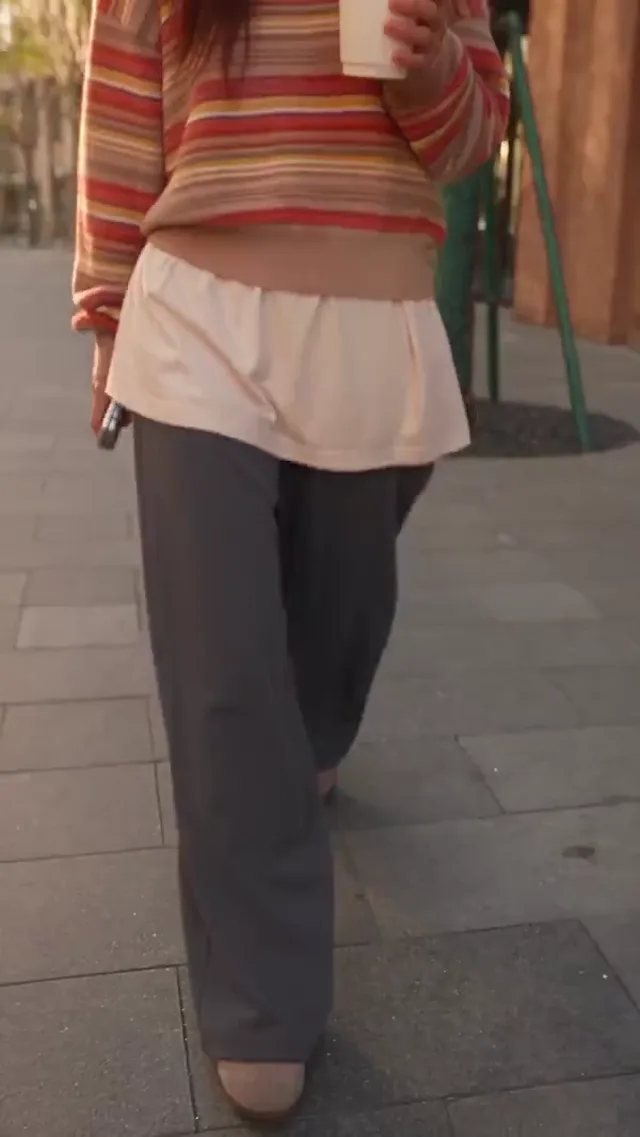
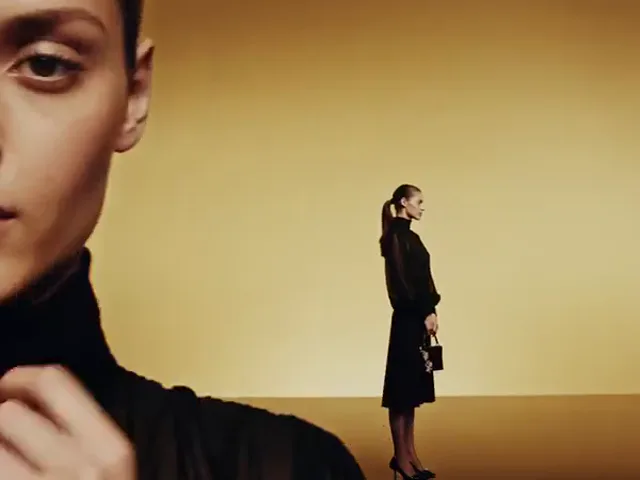
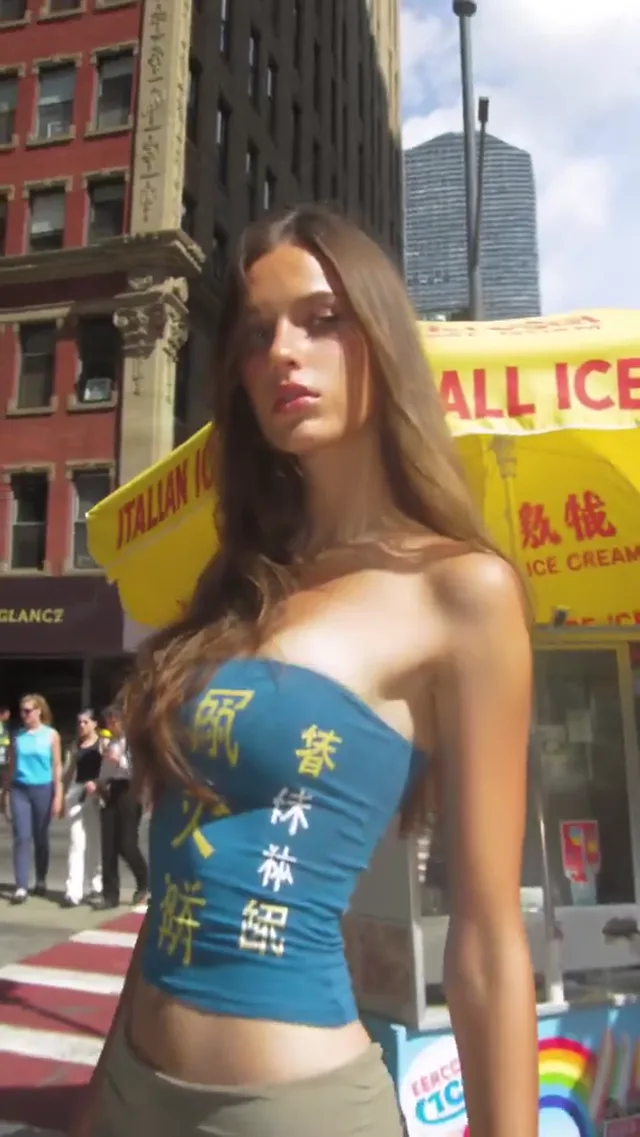
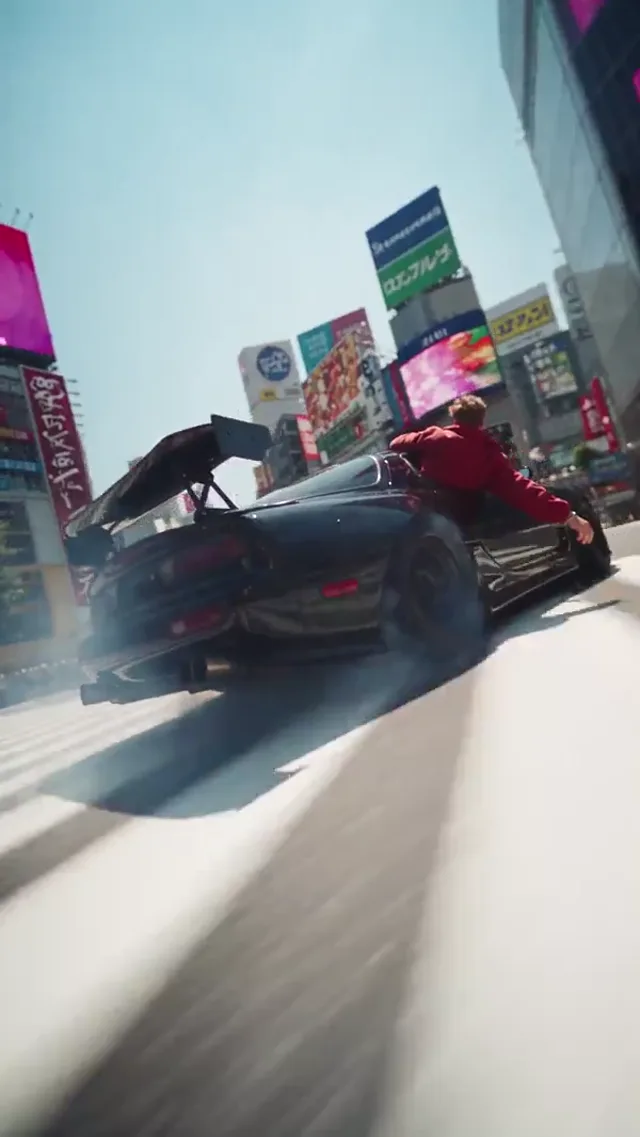
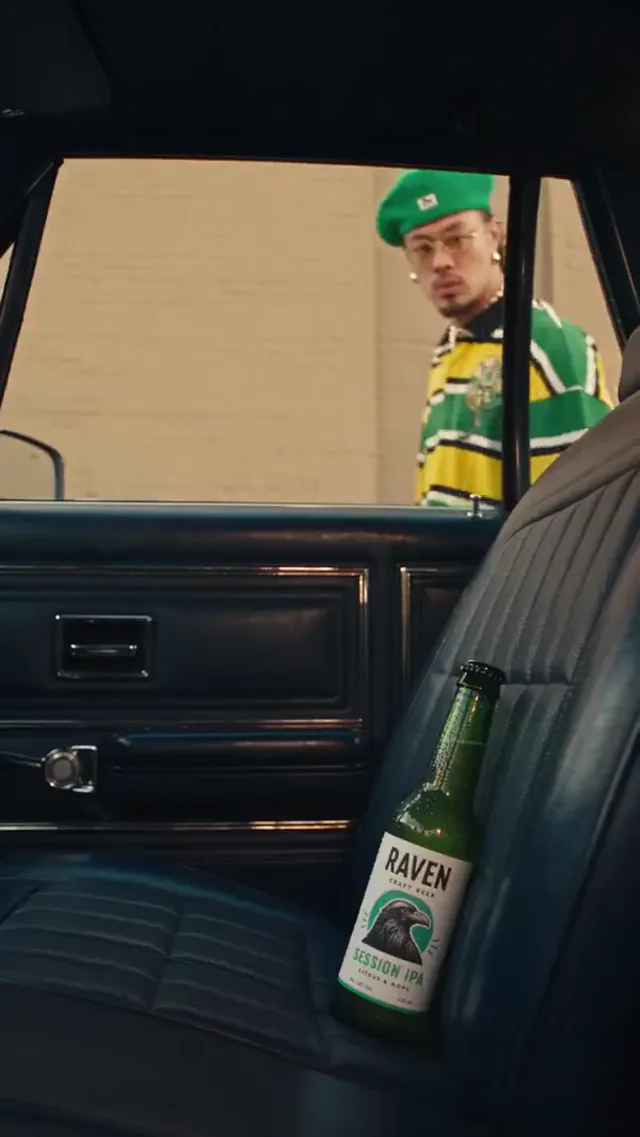
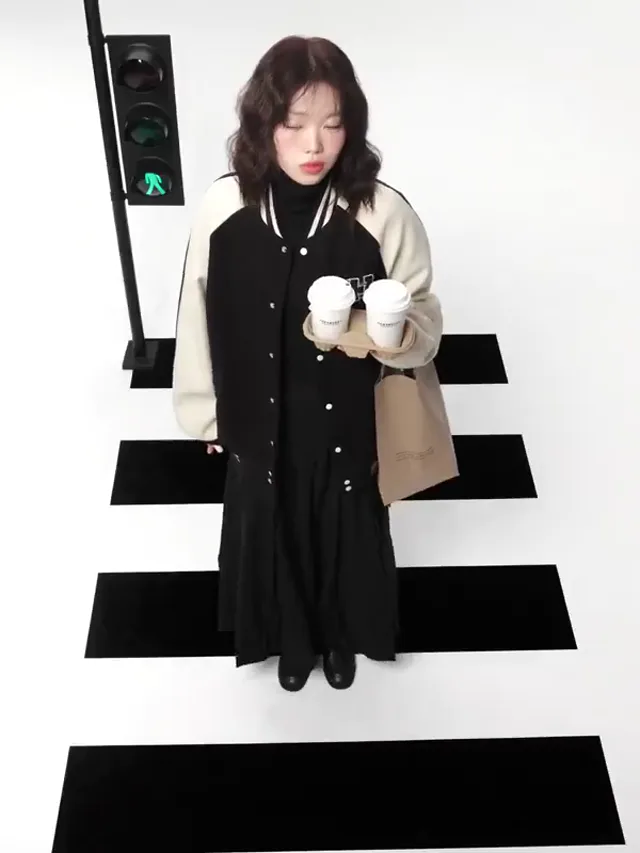
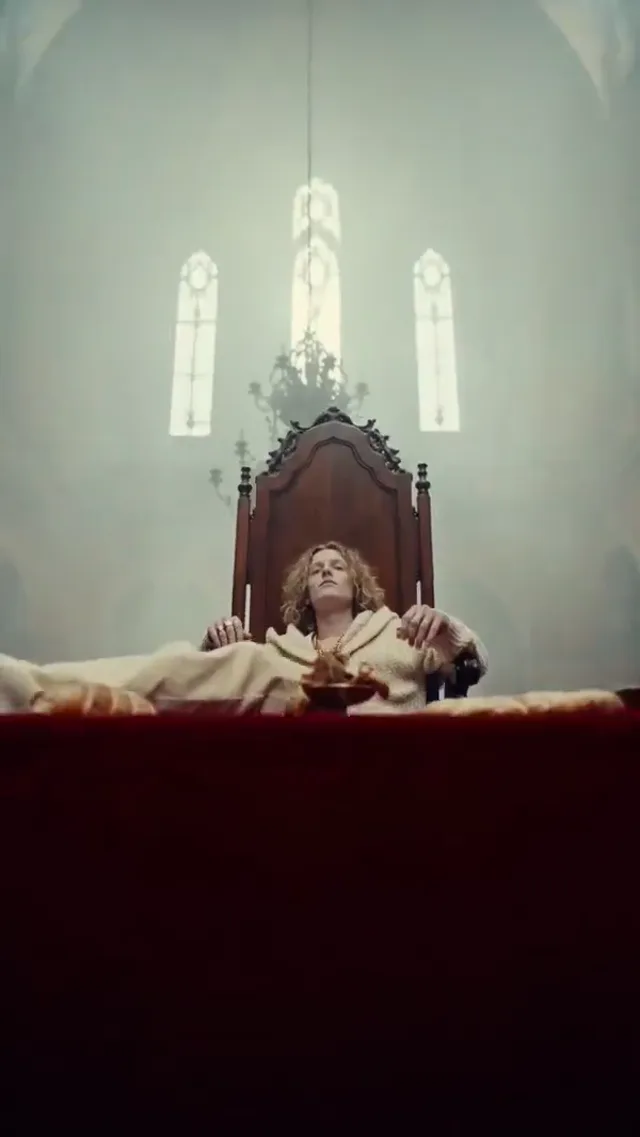
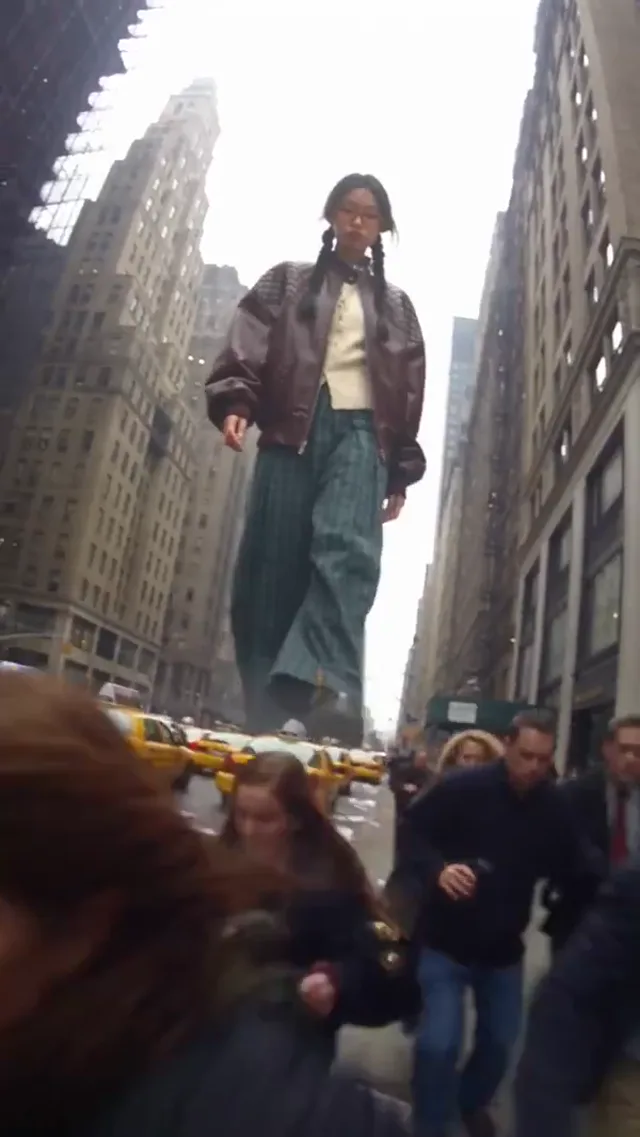
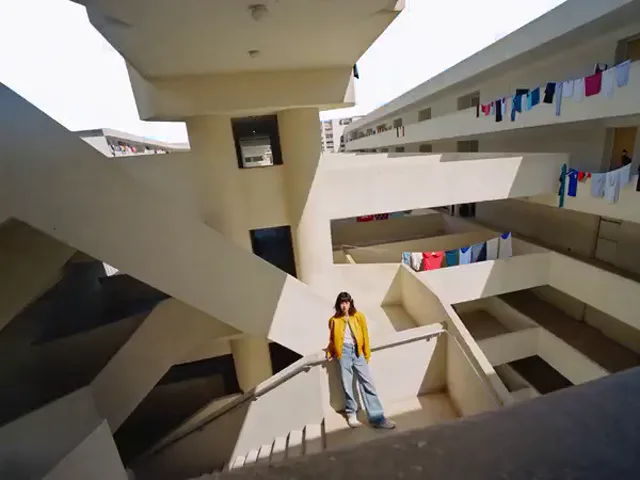
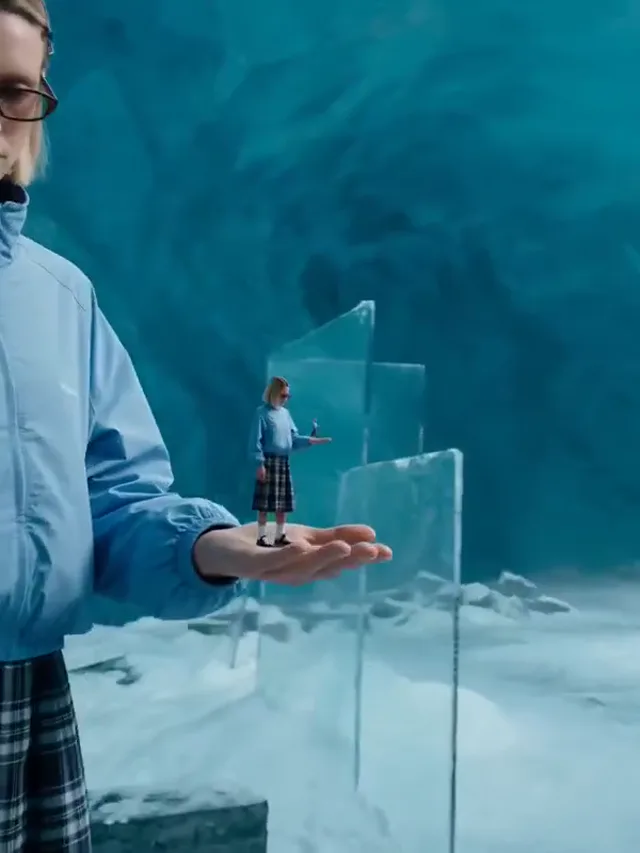
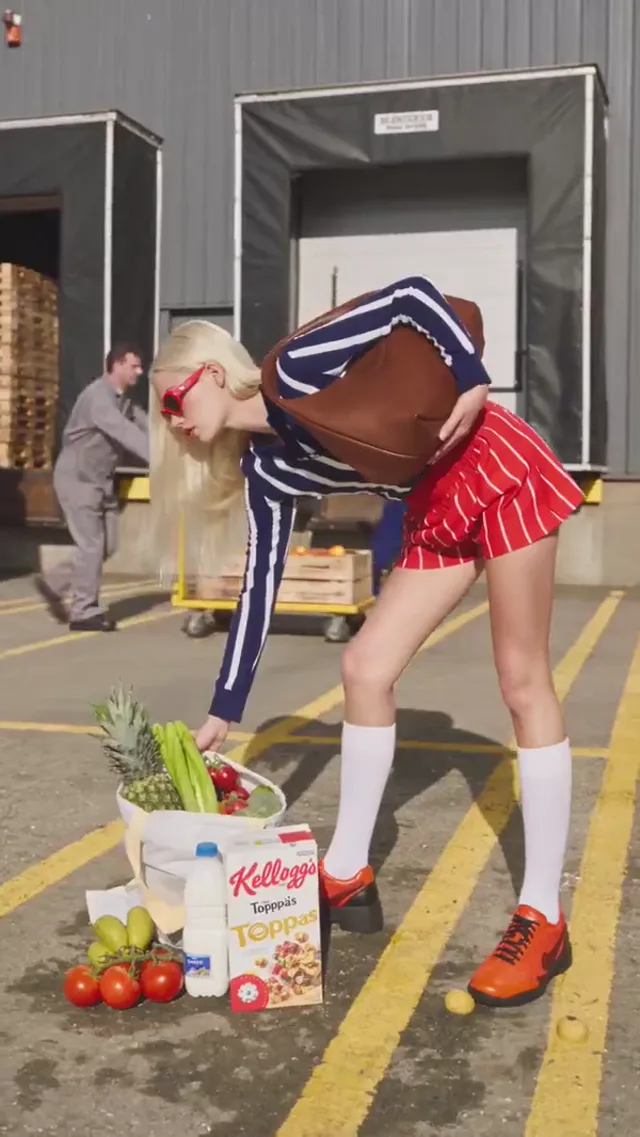
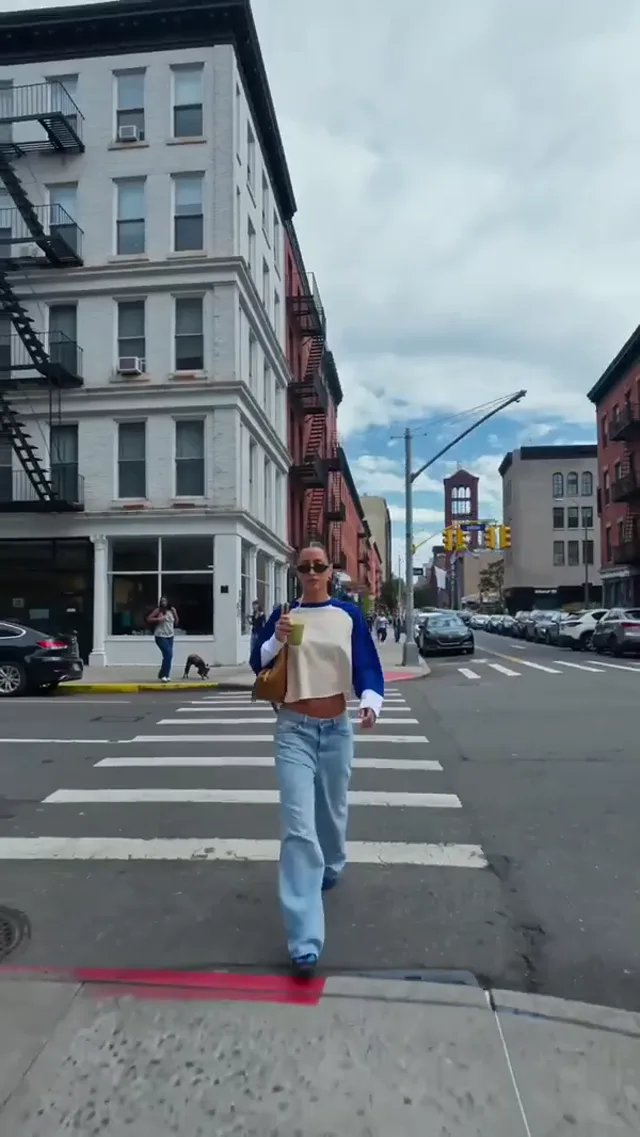
Explore the existing video examples for framing and motion. Use them to shape your own cutout pro brief, not as a promise of an identical result.

cutout pro

Create an Image. Give It Motion.

Start Creating
Four Practical Creative Decisions

From a Still Image to a Short Video With cutout pro

Choose the result you need before choosing the model. These suggested briefs show how a cutout pro workflow can develop an image, animate a reference, direct motion, and review a variation; they are not claims about the adjacent demo videos.

Give an Image Brief a Clear Subject

Suggested brief: a handmade ceramic cup on a pale counter, lit from one side. In cutout pro Image mode, describe the cup, its surroundings, and the camera angle. Compare shape and material before adding decorative details; use a reference only where the selected model supports it.

  • One defined subject
  • A deliberate composition
  • Light with a clear direction
  • Model-dependent reference input
  • Inspect shape and surface detail
Create an Image Brief

Let One Small Detail Move

Suggested brief: use a permitted close-up of a cup, then request a thin curl of steam against a still background. Choose a supported image-to-video workflow in cutout pro. Keep the action modest so changes to the rim, handle, and shadows remain easy to spot.

  • Use a permitted reference
  • Request one readable action
  • Keep the background intentional
  • Compare the opening frame
  • Review the whole clip
Explore Image to Video

Separate Camera Movement From Subject Movement

Suggested brief: move slowly closer to a tabletop arrangement while the objects remain still. Write the camera instruction separately from the scene description. Compare a locked view with a gentle approach, using available cutout pro controls without assuming perfect product or character consistency.

  • State what stays still
  • Choose a camera direction
  • Keep movement continuous
  • Review object consistency
  • Change one instruction at a time
Plan a Short Shot

Choose the Take That Fits Its Placement

Suggested brief: prepare a visual for a vertical post or a wider page header. In cutout pro, inspect the selected ratio, framing, and quote before generating. Review edges, text, faces, and any audio afterwards; use a separate editor for final sequencing or captions.

  • Choose an available aspect ratio
  • Check the current credit quote
  • Inspect details at full size
  • Review sound where present
  • Download an approved result
Review Your Workflow

Choose a Model That Fits the Brief

Compare the available image and video choices in cutout pro. Match the model to your input, supported controls, and displayed credit quote rather than choosing by name alone.

  • Gemini Omni 1.1 Flash
  • MiniMax H3
  • HappyHorse 1.1
  • Seedance 2.0
  • Seedance 2.0 Fast
  • Seedance 2.0 Mini
  • Seedance 2.5
  • Kling 3
  • Kling 3 Turbo
  • Kling O3
  • Kling 3 Motion Control
  • Kling Avatar
  • Qwen Image 3
  • Qwen Image 3 Pro
  • GPT Image 2
  • Nano Banana 2
  • Nano Banana Pro
  • Flux 2 Pro
  • Flux 2 Flex

Creative Choices That Make Each Task Useful

cutout pro brings image and video workflows into one browser workspace. Focus each request on a clear deliverable, then use the available controls and review criteria to decide whether the result is worth keeping.

Start Creating

Start With the Media Type

Choose Image for a still or Video for a moving shot. The cutout pro homepage supports both paths without making every setting interchangeable; check the active mode before adding references or writing a long brief.

Write for Visible Details

Describe the subject, composition, lighting, and material you expect to see. For a cut out pro search that brought you here, the useful next step is a concrete brief, not a list of brand names or unsupported quality promises.

Use References Deliberately

A permitted photo or illustration can guide appearance where the model accepts it. Inspect the upload requirements and preview first, then compare the generated shape, colors, and identity instead of assuming exact preservation.

Direct Motion in Separate Layers

For video, describe subject action and camera movement separately. A stationary cup with rising steam is a different brief from a moving camera around a still cup. Keep the first cutout pro experiment easy to evaluate.

Review the Quote Before Submitting

Model, mode, and output settings affect the task quote. Check the displayed amount after changing controls, and inspect the existing task before repeating a request. Plans and credit packs should match the work you actually intend to create.

Inspect Before You Download and Share

Review the full still or clip for broken details, inconsistent labels, unwanted movement, and audio where present. Save an approved result and finish any sequencing, captions, or licensed soundtrack in an appropriate editor.

A Simple cutout pro Workflow

Define the deliverable, check the available controls, and review the result.

  1. 1

    Write One Clear Brief

    Choose an image or short video, then describe its subject, surroundings, and intended composition. Add a movement only when you need a clip.

  2. 2

    Choose Inputs and Check the Quote

    Select a model in cutout pro, add permitted references where supported, and review the active ratio, output settings, and credit quote.

  3. 3

    Review, Download, or Refine

    Inspect the completed image or entire clip. Keep the useful result, or change one instruction and check the next quote before trying another variation.

Check the Quote Before You Create

Compare the displayed plans and credit packs. Each cutout pro task uses the quote for its selected model and settings; review that amount before submitting.

Basic

For solo creators making short AI videos

$9.80$19.80/month

$117.60 billed annually

Get Started

9,600 Credits

  • Commercial Use License
  • Priority Queue
  • No Watermark
  • 4K Quality
  • Private Generations
  • Copy Protection
  • More Free AI Tools
  • cutout pro
  • Video Watermark Removal

Video Generation

  • Gemini Omni 1.1 Flash
  • MiniMax H3
  • HappyHorse 1.1
  • Seedance 2.0
  • Seedance 2.0 Fast
  • Seedance 2.0 Mini
  • Seedance 2.5
  • Kling 3
  • Kling 3 Turbo
  • Kling O3
  • Kling 3 Motion Control
  • Kling Avatar

Image Generation

  • Qwen Image 3
  • Qwen Image 3 Pro
  • GPT Image 2
  • Nano Banana 2
  • Nano Banana Pro
  • Flux 2 Pro
  • Flux 2 Flex

Popular

Pro

For teams producing AI video every week

$19.95$39.90/month

$239.40 billed annually

Get Started

57,600 Credits

  • Commercial Use License
  • Priority Queue
  • No Watermark
  • 4K Quality
  • Batch Processing
  • Private Generations
  • Copy Protection
  • More Free AI Tools
  • Custom Enterprise Service
  • cutout pro
  • Video Watermark Removal

Video Generation

  • Gemini Omni 1.1 Flash
  • MiniMax H3
  • HappyHorse 1.1
  • Seedance 2.0
  • Seedance 2.0 Fast
  • Seedance 2.0 Mini
  • Seedance 2.5
  • Kling 3
  • Kling 3 Turbo
  • Kling O3
  • Kling 3 Motion Control
  • Kling Avatar

Image Generation

  • Qwen Image 3
  • Qwen Image 3 Pro
  • GPT Image 2
  • Nano Banana 2
  • Nano Banana Pro
  • Flux 2 Pro
  • Flux 2 Flex

Ultra

For studios generating AI video at scale

$99.95$199.90/month

$1,199.40 billed annually

Get Started

360,000 Credits

  • Commercial Use License
  • Priority Queue
  • No Watermark
  • 4K Quality
  • Batch Processing
  • Private Generations
  • Copy Protection
  • More Free AI Tools
  • Custom Enterprise Service
  • Dedicated Support
  • cutout pro
  • Video Watermark Removal

Video Generation

  • Gemini Omni 1.1 Flash
  • MiniMax H3
  • HappyHorse 1.1
  • Seedance 2.0
  • Seedance 2.0 Fast
  • Seedance 2.0 Mini
  • Seedance 2.5
  • Kling 3
  • Kling 3 Turbo
  • Kling O3
  • Kling 3 Motion Control
  • Kling Avatar

Image Generation

  • Qwen Image 3
  • Qwen Image 3 Pro
  • GPT Image 2
  • Nano Banana 2
  • Nano Banana Pro
  • Flux 2 Pro
  • Flux 2 Flex

Questions about your plan? Reach us at

Using cutout pro for Images and Videos

Practical answers about prompts, reference files, model choices, credits, and reviewing your results.

What can I create with cutout pro?

Use cutout pro to generate still images and short videos from text or supported references. Choose Image or Video in the generator, then inspect the selected model. Input types, editing controls, duration, and output settings differ between models; the current form is the source of truth.

How do I start an image in cutout pro?

Choose Image mode and describe the subject, setting, composition, and lighting. For example, begin with a ceramic cup on a pale table with soft window light. Keep the first brief specific enough to judge, and add a permitted reference only when the selected workflow accepts one.

How do I turn an image into a video?

Choose an image-capable video workflow in cutout pro and upload a suitable reference. Describe the movement you want: rising steam, a turning head, or a gentle camera approach. Check the preview and file requirements before submission; a reference guides the result but does not guarantee an exact copy.

Is cut out pro another spelling of this site?

This website uses the brand cutout pro at cutoutpro.org. You may also reach this page while searching for cut out pro. Check the domain when signing in or reviewing a purchase; a similar product name is not evidence of shared accounts, subscriptions, or service availability.

Do I need to install an app?

The available cutout pro workflows run in a suitable browser. Use the homepage controls to choose a media type and model. A desktop screen can make small details easier to inspect, while device memory, browser features, and connection quality may affect your experience.

Can I use cutout pro without a reference file?

Yes, where the selected model supports text input. Write a concise brief describing what should appear and, for video, what should move. Some modes require images or other references, so check the active form rather than assuming that every model accepts a text-only request.

What makes a useful image prompt?

Name the subject first, then add its surroundings, framing, and light. Separate essential details from optional styling. In cutout pro, a brief such as a plain ceramic cup on a stone counter is easier to evaluate than a list of conflicting styles or several unrelated scenes.

How should I describe motion?

Distinguish subject motion from camera motion. Ask for steam to rise while the view stays fixed, or ask for a slow camera approach while the object stays still. Test one direction at a time in cutout pro before combining complex actions.

Can I guide the first and last frames?

Use a model and mode that visibly offer first-and-last-frame controls. Add suitable opening and ending references, then describe a plausible transition. Availability and reference requirements vary; cutout pro does not make keyframe support universal across all image and video models.

Will a character or product stay identical?

A reference can supply useful visual information, but identity and small product details still need review. Compare faces, hands, labels, proportions, and colors in each result. Do not treat a successful first frame as proof that an entire generated clip remains consistent.

How do I choose between image and video models?

Start with the deliverable. A still image needs composition and detail; a clip also needs readable movement over time. Compare the controls and current quote shown in cutout pro for a candidate model, keeping the brief similar when you evaluate alternatives.

Is generation free?

Check the current account offer, active workflow, and displayed credit quote. Sign-in or credits may be required. cutout pro does not promise unlimited free rendering or a fixed introductory allowance here; review the live pricing and account information before submitting a task.

How many credits will a task use?

The quote depends on the selected model and settings. Review the amount displayed before generation, particularly after changing duration, resolution, or a reference mode. Compare plans and credit validity on the pricing page rather than relying on an old screenshot or search snippet.

What should I do if a task takes longer than expected?

Inspect the existing task status before submitting another copy. Processing can vary with the selected model and service conditions. Keep the task identifier and a non-sensitive description of the problem when asking for help; avoid sharing passwords or private reference files in public.

Can I choose the output size and video duration?

Use the options actually offered by the selected model in cutout pro. Available ratios, resolutions, and durations may change when you switch models or modes. Choose settings around the intended placement, then inspect the downloaded file rather than assuming all outputs share one specification.

Does every video include sound?

No. Check whether the selected model exposes audio generation and whether it is enabled for the task. Review the completed clip for audio quality and suitability. Captions, voiceover, licensed music, or final sound mixing may still require a separate editor.

Where can I review my results?

Use the result preview and the available My Images or My Videos areas after signing in. Check that the task has completed before downloading. Keep approved copies and your own project notes; do not assume every prompt variation or creative decision is preserved automatically.

Can I use an output commercially?

Review the current site terms, plan terms, and any applicable model restrictions. You also need the appropriate rights for uploaded artwork, product photography, likenesses, logos, and music. Using cutout pro or searching cut out pro does not by itself grant rights to third-party material.

How can I compare variations efficiently?

Keep the subject and intended use fixed, then change one variable such as light, framing, or camera direction. Compare the same details in every output and keep notes about what improved. Review the quote before another task so experimentation stays deliberate.

What should I check before publishing?

Inspect the full image or entire clip, not only the thumbnail. Look for distorted edges, unstable objects, unreadable text, incorrect brand details, and unwanted sound. Confirm input permissions and factual context, then add captions or synthetic-media disclosure when appropriate for your intended use.

Make Your Next Visual With cutout pro

Choose an image or video workflow, write one clear brief, and inspect the available settings before you create.